My Tech Home sometimes uses Affiliate Links where the blog author sometimes receives a commission.
The Essential Hardware
Flexible platform, flexible build. This is mine. Swap out any component that does not suit your budget or situation — the system will work regardless, within the limits I will flag as we go.
You can build this on an existing machine using virtual machines or Docker containers — I even ran a quick test bed using Windows Subsystem for Linux on Windows 11 with Ubuntu on top. I am writing this at small font size deliberately, because doing it that way makes everything considerably more complicated and this guide is supposed to be simple. So we are not going there.
One piece of context before the hardware list: I built above the minimum viable spec because I was building something for someone else, on borrowed time, with the knowledge it would eventually come back to me. If your situation is more permanent and your budget more constrained, there is room to tone this down. I will show you where.
The Raspberry Pi
 Buy Now →
 … and a decent power source
… and a decent microSD card
 Buy Now →
 I went with the Raspberry Pi 5, 8GB model. Is 8GB strictly necessary for running a Sky Q remote? No, it is not. Will it be enormously useful when I reclaim the hardware for something more ambitious? Yes. The kit from Amazon included the case and fan together — the saving in sourcing those separately was minimal, and I had better things to do with the research time.
On power supplies: the Raspberry Pi 5 introduced something its predecessors did not require — a proper 27W USB-C supply. This is not optional. Previous Pi generations were forgiving about power; the Pi 5 is not. Do not reach for whatever phone charger is closest and assume it will be fine. The iRasptek option above does exactly what it says, and they are all roughly the same price anyway.
For storage, use a named brand. Home Assistant specifies an application class 2 microSD card — SanDisk will not let you down. I spent a grand total of £8 on a 64GB SanDisk Extreme, which is more storage than Home Assistant will ever need for this project. Spend the £8.
If your machine does not have a built-in SD or microSD reader, add a cheap USB card reader to your order. About £5, and you will need it exactly once.
Your Build, Your Rules
Everything from this point is adjustable. I have not tested every alternative personally, so treat these as informed suggestions rather than guarantees — particularly with the faster-moving end of the hardware market.
Replacing The Pi
The Home Assistant documentation sets a clear minimum: a Raspberry Pi 4 or Pi 5 with at least 2GB of RAM. The Pi 4 with 4GB RAM is a proven and widely-used platform for Home Assistant — reliable, well-documented and, at this point, with a well-established second-hand market to match.
At time of writing, rough cost comparisons look like this:
- My Pi 5 kit (Pi, fan, case) approx £98, plus £13 for the power supply and £8 for the microSD card — total approx £120
- A Raspberry Pi 4 with 4GB RAM, case, power supply and memory card can be found on Amazon for around £90
- A Raspberry Pi 5 with 4GB RAM, case, power supply and memory card for around £100
Home Assistant is not exclusively a Raspberry Pi affair either. It runs on mini PCs, full desktop machines and Linux servers. Installation processes vary by platform, but between the official documentation and the community forums there is a guide for essentially everything — and very few problems will be new ones.
Replacing the Touchscreen
If adding a tablet feels like an unnecessary complication, the alternative is a purpose-built touchscreen monitor with a Pi mounting case on the rear — self-contained, tidy, and without the question of what a cheap Android device is quietly doing in the background. The Pi Hut carries a solid selection, though it is worth confirming that the rear case is designed for your specific Pi generation. The form factor changes between generations and not every combination is compatible — a fact best discovered before, rather than after, purchasing.
There is also a large market in 10–12 inch Android tablets on Amazon and AliExpress. Quality varies enormously. I will leave the question of how enthusiastically some of those devices collect your personal data to your own research and judgment.
And if you are already using a PC, smart TV or laptop — a web browser is all you need. Home Assistant runs perfectly well in a browser, forever, without any dedicated interface hardware at all.
Networking: Essential. Internet: Optional.
Worth knowing before we go any further: this build was installed into a home with no Internet connection whatsoever. Sky Q works without broadband. Yes, that surprised me too.
Committing to a twelve-month broadband contract for a setup that might not be needed in three or six months made no sense at all. A 4G mobile router with a pre-paid SIM was the obvious solution — and everything described here works equally well on a standard residential connection if you have one available.
Home Assistant does not actually require Internet access if you intend to run a fully local system. I needed remote access — to monitor things, apply updates and, over time, build out more tailored features based on what the end user actually wanted to watch. The project later expanded to include CCTV cameras when a 24-hour care package came into scope, for both carer and patient safety. For that, I used Reolink — and I would recommend them without hesitation.
A Good 4G Router with remote support
 Buy Now →
 Any Sim will do, but I do 3
 Buy Now →
 The Three pre-paid SIM turned out to be something of an accidental bargain — 24GB of data valid for twelve months, no contract and no monthly direct debit. Given that I connect remotely once or twice a week and the build involves no streaming or voice control, the data barely registers. Pre-paid was absolutely the right call here.
The Accessories
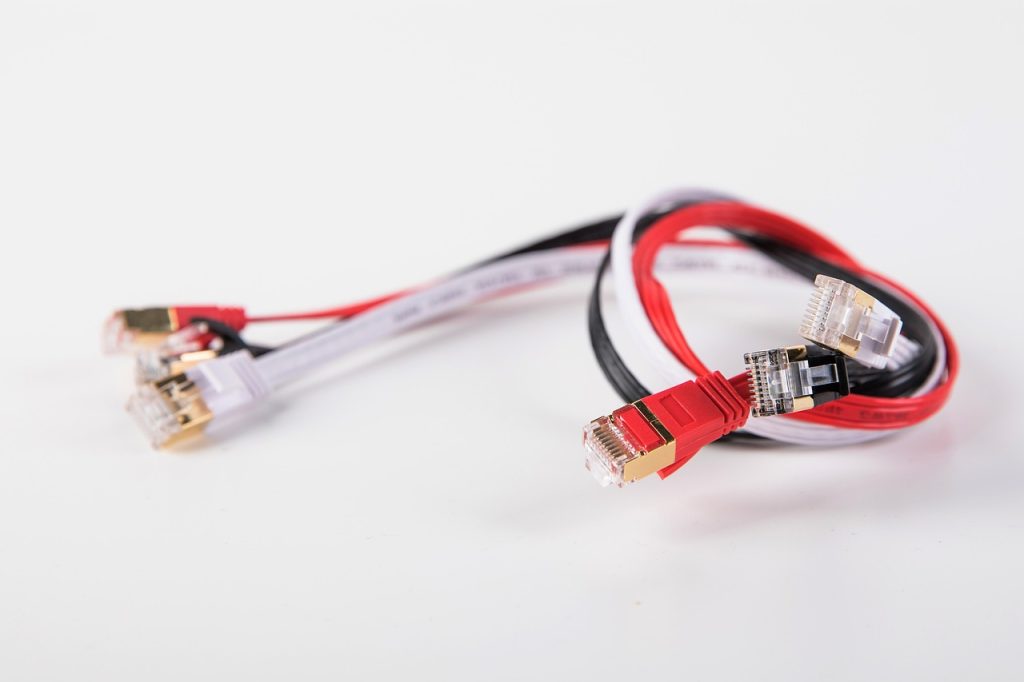
At a bare minimum, wire both the Raspberry Pi and the Sky Q box to the router with ethernet cable rather than relying on Wi-Fi. One less variable when something stops working, and ethernet cable costs about £3. It is not a complicated calculation.
Do not buy expensive cables. “Ultra high speed Cat 8 gold-plated audiophile-grade” is a marketing exercise, not a technical specification. Cat 5e or Cat 6 is more than adequate here — and frankly for most residential networks full stop. Save the money for something that will actually make a difference.
… and an interface
For this build I reused an old Android tablet I had in a drawer — a Samsung Tab A6 from 2016, recently wiped and doing absolutely nothing useful. For once, the timing of clearing out old hardware worked in my favour rather than against me.
If the plan is to manage channel changes remotely rather than from a screen in the same room, a tablet at the other end may not be necessary at all. A browser on your home computer plus Tailscale for secure remote access covers that use case without any additional hardware.

To be entirely clear: Home Assistant runs in a web browser, on any device, indefinitely. The tablet is optional. That said, the Home Assistant Companion app — available on both the Google Play Store and the Apple App Store — offers something a browser alone does not: the ability to strip the interface back to exactly what you want a particular user to see, and hide everything else. If your end user does not need complexity, you do not have to show it to them.
If you are looking to invest in a touchscreen for this, there is no need to spend much. Amazon’s revolving stock of refurbished Android tablets and iPads covers most use cases at a very reasonable price.